
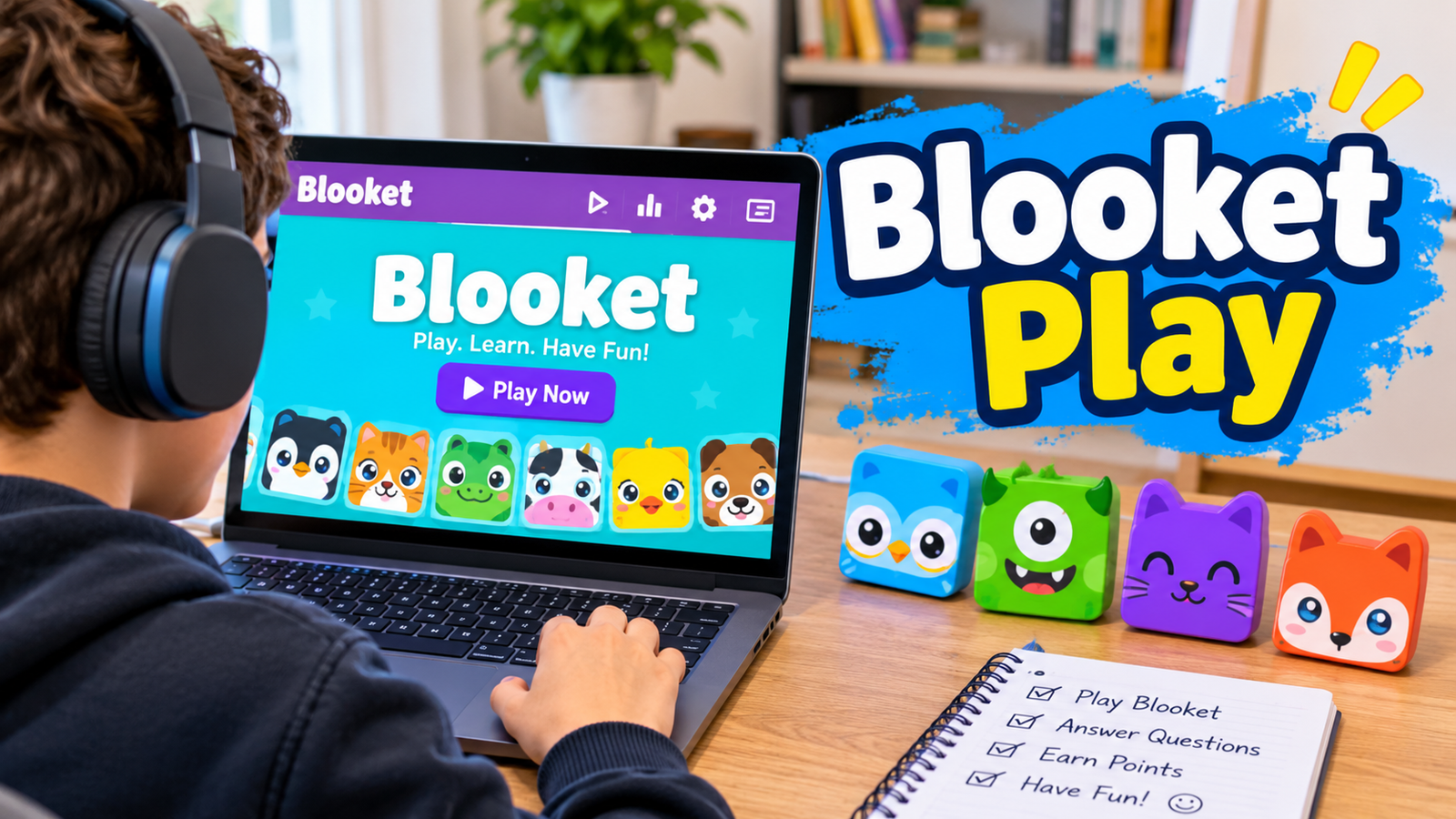
Blooket Play is an online learning experience that allows students to participate in interactive educational games using questions, challenges, and competitive game modes. Players can join a live game through a Game ID, QR code, or invitation link provided by a host. They can also explore independent learning activities through available solo-play options.
Blooket combines quizzes with game-based activities to make learning more engaging. It is commonly used in classrooms, but friends and other groups can also enjoy its interactive games. Whether you want to join a classroom session, practise independently, or host a game, understanding how Blooket Play works makes the experience easier.
What Is Blooket Play?
Blooket Play refers to playing interactive educational games on the Blooket platform. The platform allows teachers and other hosts to select question sets and turn them into games with different objectives and mechanics.
Instead of simply answering questions on a traditional quiz page, players participate in activities where correct answers help them earn points, collect rewards, complete challenges, or compete against others.
Blooket is designed primarily for educational use. Teachers can use it to review lessons, reinforce important concepts, and encourage classroom participation. Students can use it to practise subjects such as mathematics, science, vocabulary, history, and general knowledge.
The experience is browser-based, so players can participate using compatible computers, Chromebooks, tablets, and smartphones.
How to Join a Blooket Play Game
Joining a live Blooket game is straightforward. You need the Game ID or another joining method provided by the person hosting the session.
Join With a Game ID
Follow these steps to enter a live game:
- Open a web browser on your device.
- Visit Blooket’s official game-joining page.
- Enter the Game ID shared by your teacher or host.
- Continue to the joining screen.
- Enter a nickname if requested.
- Choose an available Blook character.
- Wait in the lobby until the host starts the game.
Once the session begins, follow the instructions displayed on your screen and answer the questions.
A Game ID is associated with a particular hosted session. It is not a permanent code that works for every Blooket game.
Join With a QR Code
Some hosts display a QR code to make joining easier. Players can scan it using a compatible smartphone or tablet camera.
After scanning the code, follow the instructions to enter the session. This method can be particularly convenient when a teacher displays the game on a classroom screen.
Join With an Invitation Link
A host may also share a direct joining link. Opening the link takes players to the appropriate joining process without requiring them to enter the Game ID manually.
All three methods provide access to the hosted session, subject to the host’s settings and whether the game is still available.
How to Play Blooket Games
After joining a session, players answer questions and interact with the selected game mode. Each mode has its own rules, objectives, and scoring system.
The basic gameplay process usually involves:
- Reading the question displayed on the screen.
- Selecting the correct answer from the available options.
- Earning points or other in-game rewards.
- Completing challenges based on the selected mode.
- Competing with other players or trying to achieve a personal goal.
The main objective is to answer questions accurately while enjoying the activities associated with the game mode.
Popular Blooket Game Modes
One of the most interesting features of Blooket is its variety of game modes. Different modes offer different ways to practise the same educational material.
Classic
Classic is a straightforward competitive quiz experience. Players answer questions and compete to earn points. It is suitable for classroom reviews and friendly competitions.
Gold Quest
Gold Quest combines educational questions with a treasure-hunting experience. Correct answers allow players to open treasure chests and receive different rewards, making each round less predictable.
Tower Defense
Tower Defense combines question answering with strategic gameplay. Players use their progress to build and upgrade defenses against approaching enemies.
Factory
Factory focuses on building and managing a production operation. Players answer questions while developing their virtual factory and improving its performance.
Racing
Racing turns correct answers into progress in a competitive race. Players aim to answer accurately and move ahead of their opponents.
Battle Royale
Battle Royale introduces a competitive challenge in which players answer questions while trying to outperform other participants. The objective and rules depend on the selected version of the game.
Game availability can change as Blooket updates its platform, and some modes are designed for particular play formats rather than every type of live session.
Can You Play Blooket Without an Account?
Yes. Players can generally join a live Blooket game without creating an account. They need a valid Game ID, QR code, or invitation link from the host.
Guest participation makes it easier for teachers to organize classroom activities without requiring every student to register.
However, creating an account provides access to additional platform features. Depending on the account type and available settings, these may include:
- Creating and managing question sets.
- Saving personal Blooks.
- Accessing account-related progress.
- Exploring available learning activities.
- Hosting games for other participants.
Hosting a live game requires an account, while students can participate in hosted sessions as guests.
How to Host a Blooket Play Game
Teachers and other users can host games by selecting an existing question set or creating their own.
Getting Started With Hosting
- Sign in to your Blooket account.
- Open the My Sets or Discover section.
- Select a question set.
- Choose the Host option.
- Select an available live game mode.
- Review the game settings.
- Start hosting and share the displayed Game ID, QR code, or invitation link.
- Allow participants to join the waiting lobby.
- Start the game when everyone is ready.
The host can manage the session using the available settings. Depending on the game mode, these settings may include time limits, joining permissions, and question-order preferences.
This gives teachers flexibility when organizing activities for different classroom sizes and learning objectives.
How to Play Blooket Solo
Blooket also provides independent activities for users who want to practise without competing in a live classroom session.
Solo play is useful for reviewing difficult topics, preparing for assessments, and improving subject knowledge at an individual pace.
To get started:
- Sign in to your Blooket account.
- Open Discover or My Sets.
- Choose a question set.
- Select the Solo or Play Solo option where available.
- Browse the available solo game modes.
- Choose a mode and begin playing.
The available solo modes depend on the question set, account access, and current platform features.
Blooket Play on Mobile and Desktop
Blooket is accessible through web browsers on different devices. Players generally do not need to install a separate application to join a live session.
Playing on a Computer
Desktop and laptop users can open Blooket in a compatible browser, enter the Game ID, and participate in the session. A larger screen can make it easier to read questions and follow game activities.
Playing on Android and iPhone
Mobile users can join through a compatible browser. They can enter the Game ID, open a shared invitation link, or scan a QR code when supported by their device.
The screen layout and controls may vary depending on the device and selected game mode.
Playing on a Chromebook
Chromebooks are commonly used in educational environments. Students can access Blooket through the browser and join classroom games using the details provided by their teacher.
If a school-managed device blocks the platform, students should contact their teacher or school technology administrator.
Benefits of Using Blooket Play for Learning
Blooket offers several features that can support interactive education and classroom participation.
More Engaging Learning: Game-based activities can make reviewing educational material more interesting than traditional question-and-answer exercises.
Knowledge Retention: Repeated exposure to questions helps students revisit important concepts and identify areas that need improvement.
Classroom Participation: Competitive and collaborative activities can encourage students to take part in classroom discussions and learning exercises.
Flexible Learning: Students can participate in hosted games or use available solo activities to practise independently.
Different Subjects: Teachers can use question sets covering mathematics, science, languages, history, and other educational topics.
Progress Review: Teachers can use available game results and reports to understand student performance and identify topics that may require additional attention.
Common Blooket Play Problems and Solutions
Sometimes players experience difficulties when joining or playing a game. Most problems can be addressed by checking the session information and browser settings.
Invalid Game ID
An invalid Game ID message may appear when the code is incorrect, expired, or associated with a session that is no longer available.
Solution: Ask the host to confirm the current Game ID and provide a new one if necessary.
Unable to Join a Game
Players may be unable to enter a session because the game has already ended or the host has restricted late joining.
Solution: Contact the host and ask whether the session is still accepting participants.
Blooket Is Not Loading
Connection problems, browser extensions, or network restrictions can prevent the platform from loading correctly.
Solution: Refresh the page, check your internet connection, temporarily disable interfering browser extensions, and try another compatible browser.
Game Is Not Working on a School Device
School networks sometimes restrict access to certain websites or online services.
Solution: Ask your teacher or school technology administrator to check the network settings.
Questions or Images Are Not Displaying
Some display problems can result from browser compatibility or connection issues.
Solution: Try reloading the session and checking the browser. Blooket also provides a troubleshooting page for connection and image problems.
Is Blooket Play Safe for Students?
Blooket is an educational platform designed for classroom and independent learning. However, students should follow basic online safety practices when using it.
They should avoid sharing personal information, passwords, home addresses, or other private details through display names or classroom activities.
Teachers and parents can help by selecting appropriate question sets, supervising classroom activities, and explaining responsible online behaviour.
Students should also use the platform for its intended educational purpose rather than relying on unofficial websites claiming to provide free game codes or special account rewards.
Frequently Asked Questions About Blooket Play
What is Blooket Play used for?
Blooket Play is used to participate in interactive educational games. Students answer questions, earn rewards, and complete challenges while reviewing different subjects.
How do I join Blooket Play with a code?
Open the Blooket game-joining page, enter the Game ID provided by your teacher or host, and follow the instructions to enter the session.
Can I play Blooket without signing up?
Yes. You can generally join live games as a guest without creating an account. Hosting games and accessing certain personal features require an account.
Can I play Blooket alone?
Yes. Blooket offers solo game options that allow users to practise with question sets independently. Available modes depend on the platform’s current features.
Is Blooket Play free?
Blooket offers free access with core game-playing and hosting features. It also provides paid subscription options with additional features and benefits.
Can I play Blooket on my phone?
Yes. You can access Blooket through a compatible mobile browser on Android and iPhone devices. A separate app is generally not required to join a live game.
Conclusion
Blooket Play makes educational activities more interactive by combining quizzes with different game experiences. Students can join live classroom sessions using a Game ID, QR code, or invitation link, while teachers can create and host activities using question sets and available game modes.
Its combination of competitive gameplay, independent practice, and classroom-friendly features makes it a useful educational resource. Whether playing with classmates or reviewing lessons independently, Blooket provides an engaging way to practise knowledge and participate in learning activities.
Also read: Blooket Login

1 Comment
Pingback: Blooket Dashboard: Login, Features, and How to Use It