
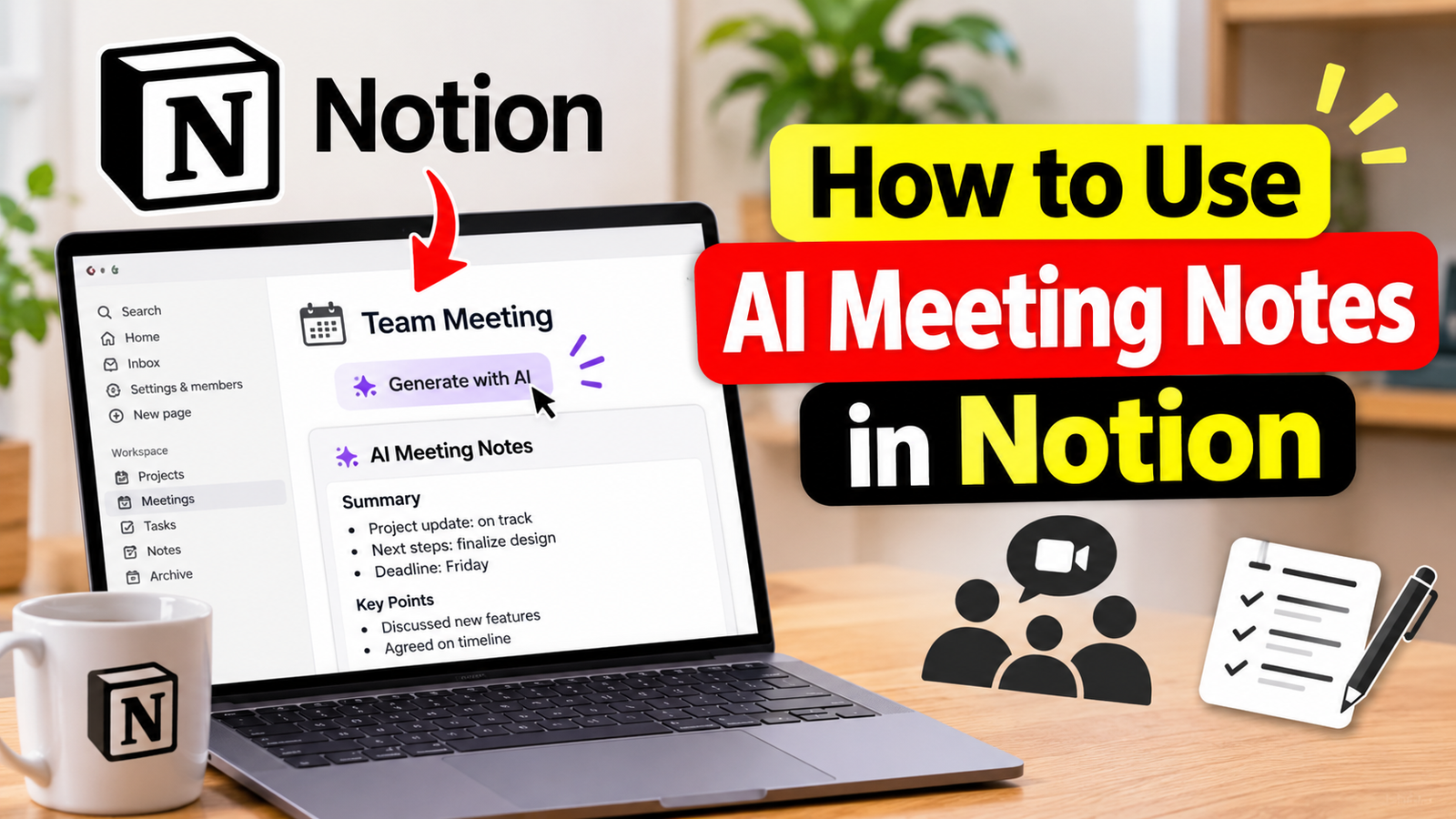
Learning how to use AI meeting notes in Notion can make meetings easier to manage by automatically capturing conversations, creating transcripts, summarizing important discussions, and identifying action items. Instead of typing everything manually, users can focus on conversations while Notion AI helps organize the information.
Notion’s AI Meeting Notes feature combines transcription, AI-powered summaries, and workspace organization in one place. It allows users to review discussions, identify important decisions, and keep meeting records connected to projects and tasks.
Whether you are a student, freelancer, business owner, or team manager, understanding how this feature works can help you improve your meeting workflow.
What Are AI Meeting Notes in Notion?
AI Meeting Notes is a built-in Notion feature that captures spoken conversations and turns them into organized meeting records. It uses artificial intelligence to transcribe audio, summarize discussions, and identify key points and action items.
Users can create meeting notes directly inside an existing Notion page or save them as separate pages. This makes it easier to connect meeting information with project documentation, team discussions, and other workspace content.
The feature generally provides three important elements:
- Transcription: Converts spoken conversations into written text.
- AI Summary: Highlights important topics and information from the meeting.
- Action Items: Identifies tasks and follow-up activities discussed during the conversation.
Notion AI can also consider notes written before or during a meeting when generating its summary.
Who Can Use Notion AI Meeting Notes?
Notion AI Meeting Notes is designed for individuals and teams who want to manage meeting information more efficiently.
According to Notion’s current documentation, the feature is available on Business and Enterprise plans, with availability also offered through eligible mobile subscriptions that include Notion AI.
For desktop users, Notion requires version 4.7.0 or later. Mac users need macOS 13 or later.
The feature supports several languages, including:
- English
- Chinese
- Spanish
- French
- German
- Japanese
- Korean
- Portuguese
- Russian
- Thai
- Vietnamese
- Danish
- Finnish
- Norwegian
- Dutch
- Swedish
Speaker labeling is currently available in English only.
How to Use AI Meeting Notes in Notion
Getting started with AI Meeting Notes is straightforward. You can create a meeting note, start transcription, and let Notion AI organize the conversation.
Open a Notion Page
First, sign in to your Notion account and open the workspace where you want to save your meeting notes.
You can use an existing project page, create a new page, or open a dedicated meetings database.
Choose a location that makes it easy to find your meeting information later.
Create an AI Meeting Notes Block
Open the page where you want to record the meeting.
Type /meet in the Notion editor and select the AI Meeting Notes option.
Notion will insert a meeting notes block into your page.
You can also create meeting notes as a separate page through the Meetings section in the sidebar or the available meeting creation options.
Add Meeting Details and Agenda Items
Before starting the recording, add useful information to the Notes section.
For example, you might include:
- Meeting topic and purpose.
- Names of participants.
- Important questions.
- Project updates.
- Topics that need discussion.
- Expected decisions.
Adding this information gives Notion AI additional context when generating the final summary.
Start Transcription
When the meeting begins, select Start transcribing in the AI Meeting Notes block.
Notion will begin capturing and transcribing the conversation.
For desktop virtual meetings, the Notion app can capture microphone and system audio, allowing it to transcribe both sides of a conversation.
You may need to grant the application the required microphone and system audio permissions.
Make sure everyone participating in the meeting has agreed to recording and transcription before starting.
Stop Recording and Generate the Summary
When the meeting finishes, select Stop in the meeting notes block.
Notion AI will process the recorded conversation and generate a summary.
The resulting meeting record can include a transcript, important discussion points, and suggested action items.
Notion requires at least 300 transcribed characters, approximately one minute of spoken content, to generate a summary.
Review and Organize Your Meeting Notes
Once the summary is ready, review it carefully.
Check whether important decisions, names, deadlines, and responsibilities have been captured correctly.
You can edit the page, add missing information, and organize the content using Notion’s regular editing tools.
This final review is important because AI-generated summaries can occasionally misunderstand words or miss important context.
How to Customize AI Meeting Notes in Notion
Notion allows users to customize how AI Meeting Notes organizes meeting summaries.
This is particularly useful when different meetings require different types of documentation.
Use Built-In Summary Instructions
At the bottom of the AI Meeting Notes block, find the Instructions option.
Select the dropdown menu to choose a suitable summary format instead of using the automatic default.
For example, different formats can help organize sales conversations, daily stand-ups, and general team meetings.
Create Custom Summary Instructions
You can also create your own instructions to control the structure of AI-generated summaries.
To do this:
- Open the Instructions dropdown.
- Select the option to add custom instructions.
- Edit the template page that appears.
- Describe the information and structure you want in your summaries.
- Save your instructions and select them for future meetings.
For example, you can request a summary containing meeting objectives, key discussion points, decisions, assigned tasks, responsible people, and deadlines.
Custom instructions are private by default. If you want to use shared instructions, you must add them to your own available instructions.
Set Default Summary Instructions
If you regularly use the same summary format, you can make it your default.
Open the Instructions dropdown, hover over your preferred format, select the three-dot menu, and choose Set as default.
Notion will apply that format to new meeting recordings automatically.
How to Connect Notion AI Meeting Notes With Notion Calendar
Connecting Notion Calendar with your workspace can make meeting management more convenient.
When connected, you can access upcoming meetings and create meeting notes directly from calendar events.
The process includes:
- Connect Notion Calendar to your Notion workspace.
- Open your upcoming calendar events.
- Select the option to create meeting notes.
- Choose where the notes should be saved.
- Add an agenda or other preparation details.
- Start transcription when the meeting begins.
Meeting notes connected to calendar events can include useful properties such as the meeting title, date, and attendees.
You can also organize recurring meeting notes in a dedicated meetings database.
This approach is useful for weekly team meetings, project discussions, and regular one-to-one conversations.
How to Upload an Existing Recording to Notion AI
You do not always need to record a meeting live to use AI Meeting Notes.
Notion also supports uploading an existing audio recording for transcription and summarization.
To upload a recording:
- Open a Notion page containing an AI Meeting Notes block.
- Select the settings icon at the top of the block.
- Choose Upload audio.
- Select the audio file from your device.
- Allow Notion to process the recording.
Supported audio formats include AAC, M4A, MP3, and WAV.
After processing, Notion AI generates a transcript and summary from the uploaded recording.
This option is useful when you already have a meeting recording and want to convert it into searchable documentation.
How to Organize AI Meeting Notes in a Notion Database
A meetings database helps keep multiple meeting records organized in one location.
Instead of creating separate pages without a consistent structure, you can use a dedicated database to manage meeting information.
A useful meetings database can include the following properties:
| Property | Purpose |
|---|---|
| Meeting Title | Identifies the meeting |
| Date | Records when it took place |
| Attendees | Lists meeting participants |
| Project | Connects notes to a project |
| Decisions | Stores important outcomes |
| Action Items | Tracks follow-up tasks |
| Status | Shows the progress of tasks |
You can create templates for recurring meetings, such as team updates, client calls, and project reviews.
Notion also supports meeting notes databases with built-in meeting details, including title, date, and attendees.
Organizing notes this way makes it easier to search previous discussions and follow project progress.
Benefits of Using AI Meeting Notes in Notion
AI Meeting Notes offers several practical advantages for individuals and organizations.
Saves Time During Meetings
Traditional note-taking requires participants to divide their attention between listening and writing.
AI Meeting Notes helps reduce this workload by capturing conversations automatically.
Improves Meeting Documentation
Automatically generated transcripts provide a written record of discussions.
This makes it easier to revisit important information instead of relying entirely on memory.
Makes Action Items Easier to Identify
Notion AI can identify tasks and follow-up activities from meeting conversations.
This helps teams understand what needs to happen after a discussion.
Keeps Information Organized
Meeting notes can live inside project pages or dedicated databases.
This reduces the need to search through separate documents and applications.
Supports Better Team Collaboration
Meeting summaries can be shared with relevant colleagues through Notion’s page-sharing settings.
Team members who cannot attend a meeting can review the available notes and understand the main discussion points.
Limitations of Notion AI Meeting Notes
Although the feature is useful, it is important to understand its limitations.
Speaker identification is limited: Speaker labeling is currently available in English. Accuracy and availability can also depend on the meeting setup.
Audio quality matters: Background noise, poor microphones, and overlapping conversations can affect transcription quality.
Browser recording has limitations: The browser version primarily captures microphone input. It does not capture system audio in the same way as the desktop app.
Mobile recording has limitations: The mobile app captures audio through the phone’s microphone. It may not capture other participants’ voices when you use headphones during a video call.
Internet access is required: AI Meeting Notes does not currently support offline use.
AI summaries need review: Important details, names, and deadlines should be checked before sharing the final notes.
Understanding these limitations helps users get more reliable results.
Privacy and Security Considerations
Recording and transcribing meetings involves handling potentially sensitive information.
Before using AI Meeting Notes, inform participants and obtain their consent. Recording requirements can vary depending on local laws and the type of meeting.
Notion provides individual sharing settings for meeting notes, allowing users to control who can access the transcription, notes, and summary.
It is also important to understand how audio is handled.
For live recordings, Notion processes audio for transcription through its service providers. Temporary audio copies may be retained for a limited period when processing needs to be retried.
Uploaded audio files are stored on Notion’s servers and can be deleted through the meeting notes settings.
For confidential meetings, review your organization’s privacy policies, workspace permissions, and applicable recording requirements before using the feature.
Best Practices for Getting Better Results
You can improve the usefulness of AI-generated meeting notes by following a few simple practices.
- Use a good-quality microphone to improve audio clarity.
- Reduce background noise whenever possible.
- Add an agenda before starting transcription.
- Encourage participants to speak clearly.
- Avoid having multiple people speak simultaneously.
- Use custom instructions for recurring meeting formats.
- Review important decisions and deadlines manually.
- Store meeting notes in an organized database.
- Share notes only with authorized participants.
These practices help create clearer transcripts and more useful summaries.
Frequently Asked Questions
Is Notion AI Meeting Notes free?
AI Meeting Notes is not generally included in Notion’s standard free-plan features. According to Notion’s documentation, it is available on Business and Enterprise plans, as well as eligible mobile subscriptions that include Notion AI. Availability and plan requirements may change.
How do I start AI Meeting Notes in Notion?
Open a Notion page, type /meet, and select the AI Meeting Notes option. Add any relevant agenda information and select Start transcribing when the meeting begins.
Can Notion AI automatically summarize meetings?
Yes. After transcription stops, Notion AI processes the conversation and generates a summary containing important discussion points and action items.
Can I use AI Meeting Notes without recording a live meeting?
Yes. You can upload an existing audio recording to an AI Meeting Notes block. Notion supports AAC, M4A, MP3, and WAV audio files.
Does Notion AI Meeting Notes identify speakers?
Notion can detect changes between speakers and provide speaker labels in supported setups. Speaker labeling is currently available in English, and its reliability depends on the recording environment.
Can I share AI meeting notes with my team?
Yes. You can use the sharing settings on an AI Meeting Notes block or its containing page to control who can access the meeting transcript, notes, and summary.
Conclusion
Understanding how to use AI meeting notes in Notion can help you improve the way you record, summarize, and organize meetings. The feature combines automatic transcription, AI-generated summaries, action item identification, and workspace organization.
By creating meeting notes with /meet, customizing summary instructions, connecting Notion Calendar, and organizing records in a dedicated database, you can build a more efficient meeting management system.
However, always review AI-generated information and obtain participants’ consent before recording. With the right setup and workflow, Notion AI Meeting Notes can become a valuable tool for managing everyday meetings and keeping important discussions accessible.
Also read: Celebrity Morning Routine

1 Comment
Pingback: Arts KnowYourMeme 2013: Exploring Internet Art and Meme Culture